
Set up Microsoft Authenticator by 1 February 2027
What to do: set up the Microsoft Authenticator app on your phone. It takes about 5 minutes.
Why: today we text a code to your phone when you sign in. Microsoft is ending those texts for work accounts on 1 February 2027.
If you do nothing: after that date the text will not arrive, and you will not be able to sign in until IT helps you.
One guide, two ways to follow it
Watch the 3-minute video, or follow the same steps written out below.
Step 1: Install Microsoft Authenticator
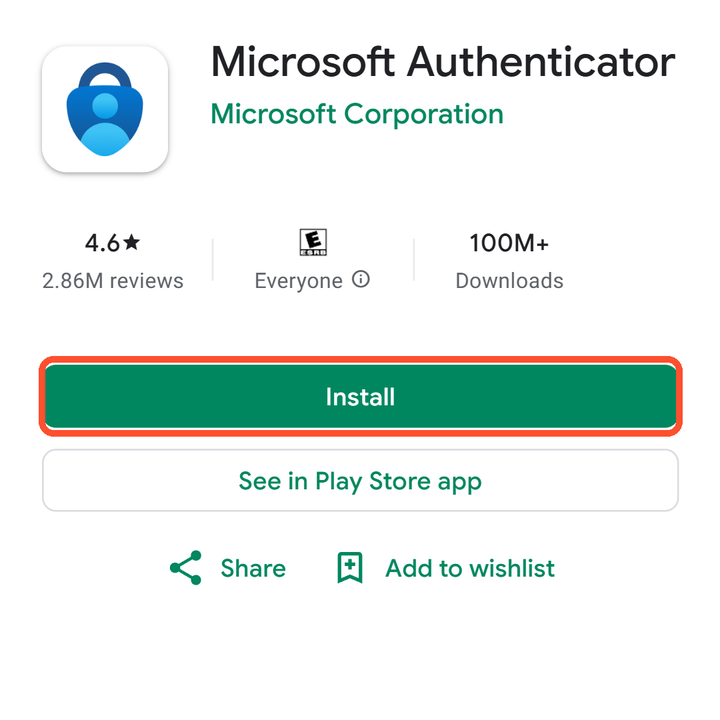
Search for Microsoft Authenticator in the Play Store or App Store. Check that it says Microsoft Corporation.
Step 2: Open the app and tap the plus
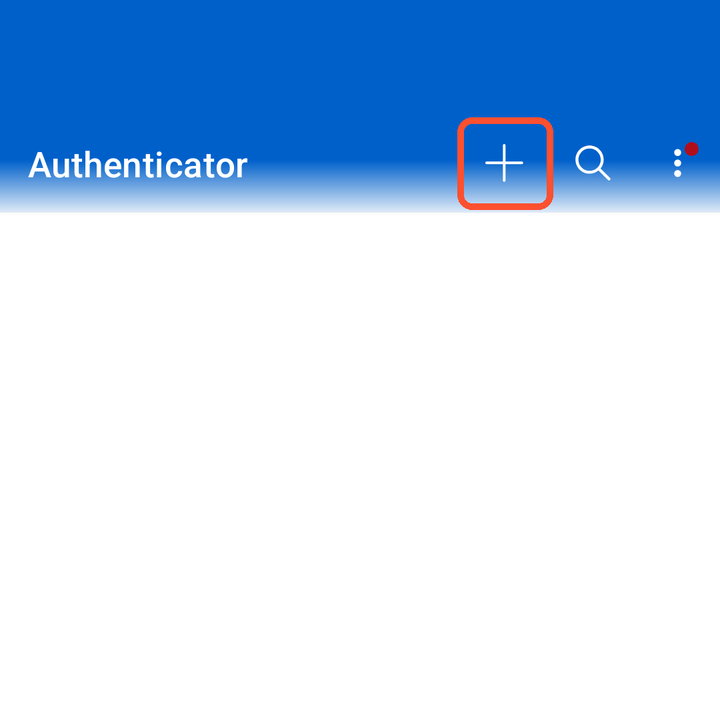
Tap the plus at the top. If this is your first time in the app, tap Add work or school account instead.
Step 3: Tap Work or school account
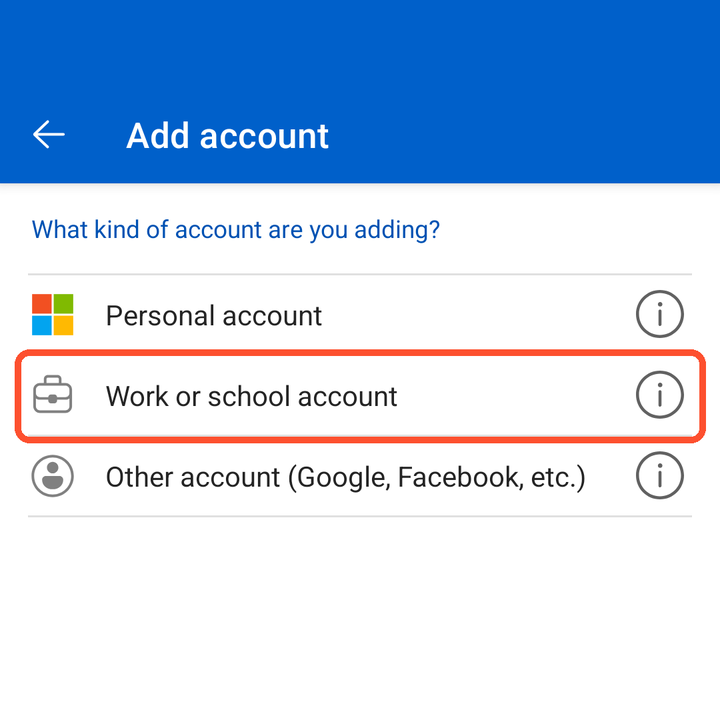
Choose Work or school account from the list.
Step 4: Tap Sign in
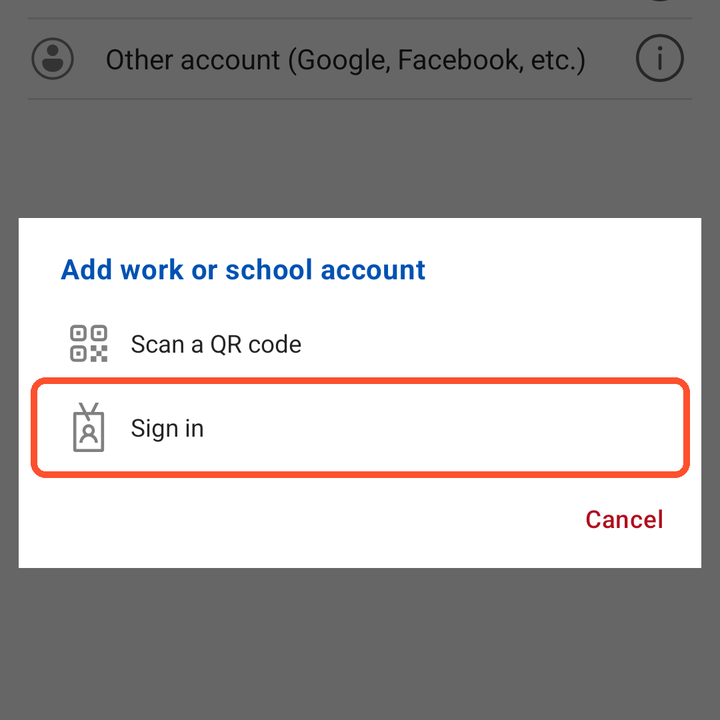
Choose Sign in. You do not need a QR code.
Step 5: Type your work email, then tap Next
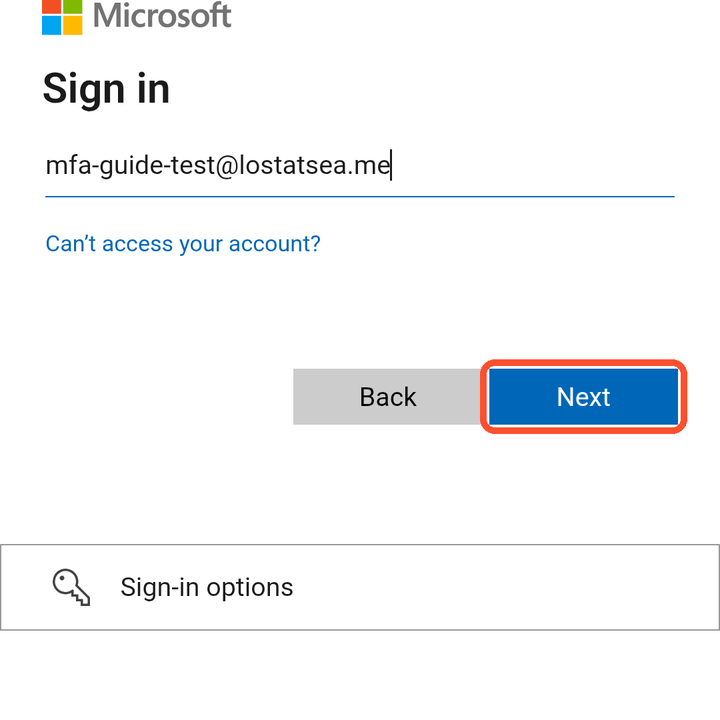
Use the same email address you sign in to work with.
Step 6: Type your password, then tap Sign in
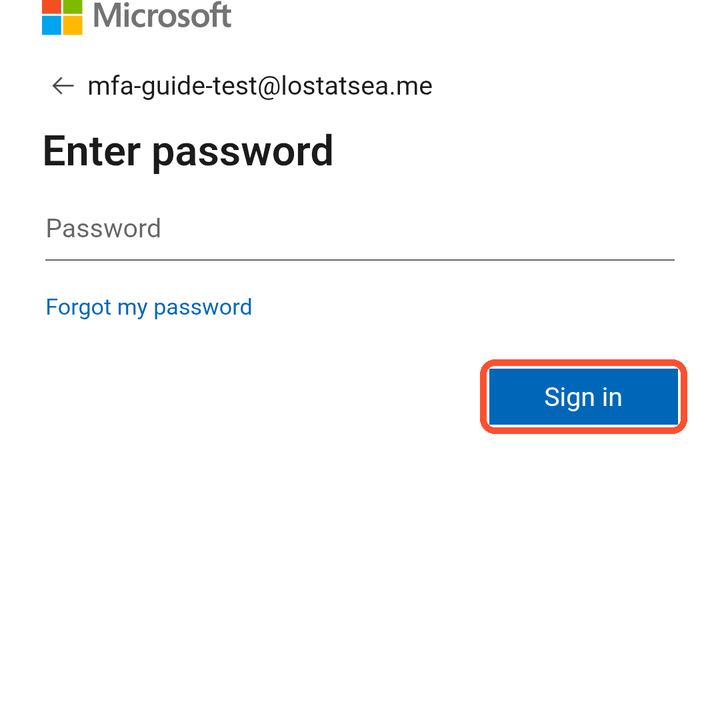
This is your normal work password.
Step 7: Tap Text to get a code
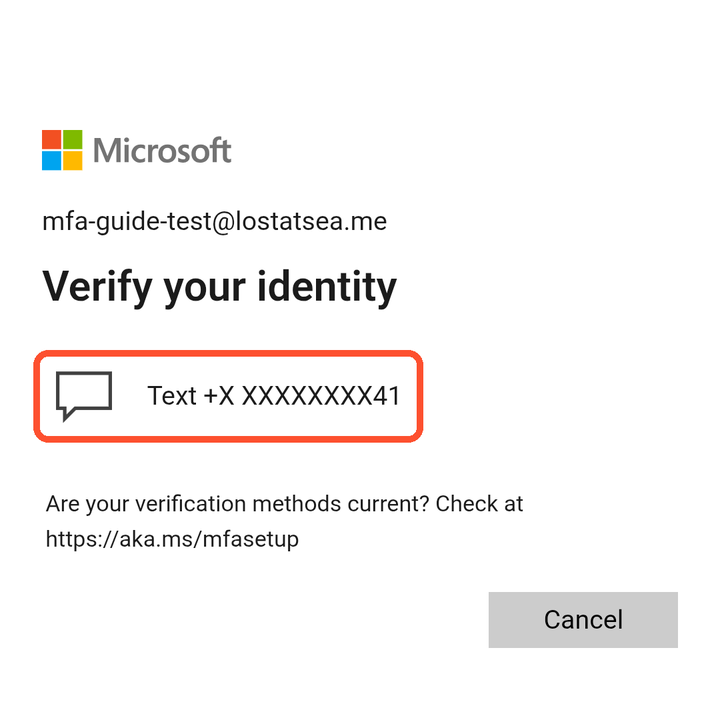
We text a code to the phone number already on your account.
Step 8: Type the code, then tap Verify
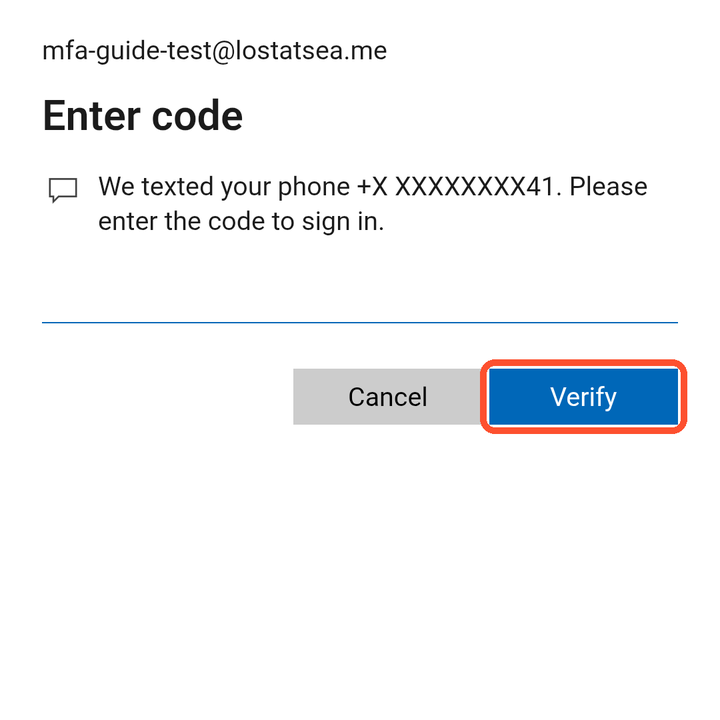
This is the last time you will need a text code.
Step 9: Tap Continue
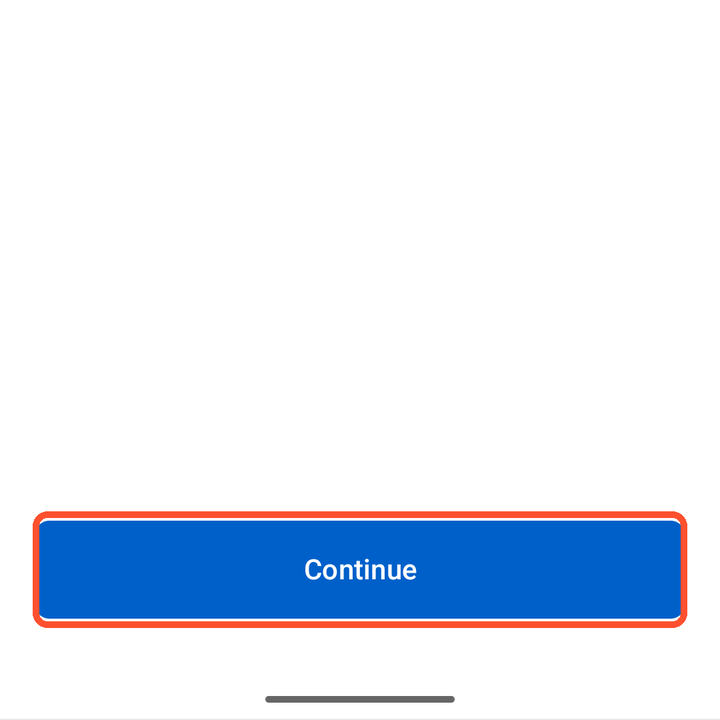
This creates your passkey. It takes less than a minute.
Step 10: Confirm with your face, fingerprint or PIN
Your phone asks the same way it does when you unlock it.
Step 11: Tap Done
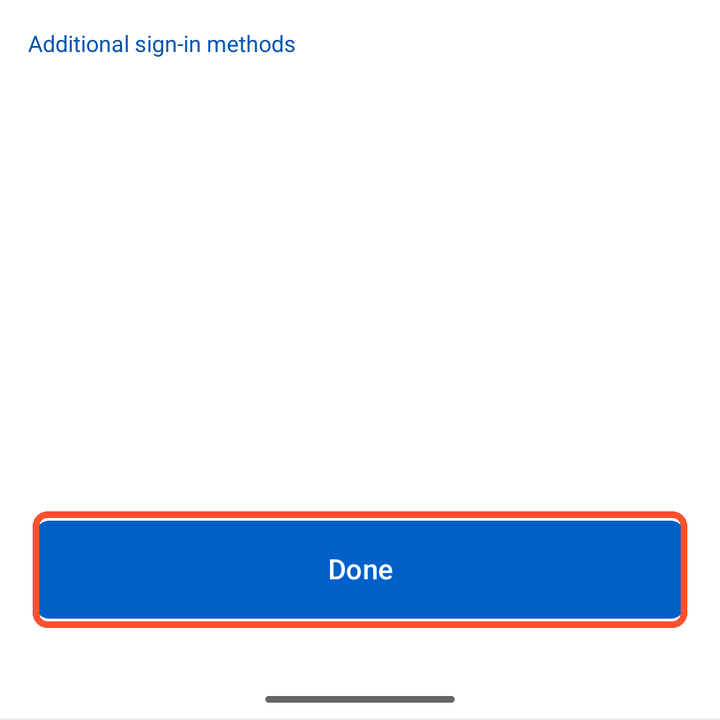
You will see Account added. Your passkey is ready.
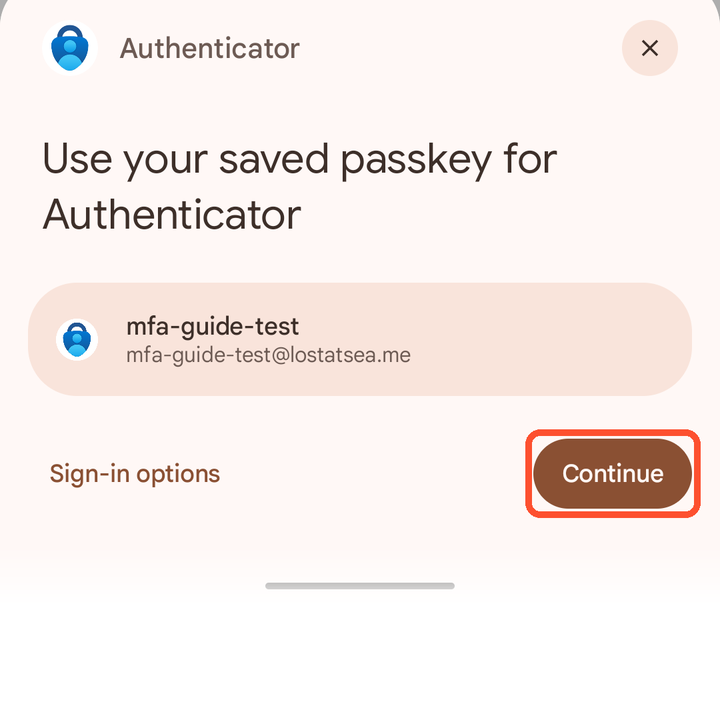
From now on
When you sign in, your phone offers your saved passkey. Tap Continue, then confirm with your face, fingerprint or PIN.
There is no code to wait for.
What is not changing
Your email address and your password stay the same.
Your other apps are not affected.
You only set this up once per phone.
Need help?
Contact your IT help desk and say you are setting up Microsoft Authenticator.
